Support
If you're already a customer, try emailing questions to your Bex directly. It can also take your feature requests and bug reports. Of course, feel free to contact us at any time: human@bexbuilds.ai.
 4 minutes
 5 minutes
 5 minutes
 2 minutes
 2 minutes
 2 minutes
 1 minute
 3 minutes
 3 minutes
Setup applies to Bex Punch only (unless you are not using a construction management system). Other modules read project data directly from your CMS and need no configuration.
To set up a project, email your CSM. They'll send back a spreadsheet generated from Procore (or your other CMS) listing eligible assignees and distribution lists. Check off the people who would typically receive assignments, mark which employees should be CC'd on subcontractor communications, and return the spreadsheet.
The roster maintains itself after that. Adding or removing Procore users updates it automatically, and when an employee responds to an approval request by picking an assignee who isn't on the roster, Bex adds that person so the selection can be made automatically next time. For anything outside that, email your CSM.
Punch works without this setup. The advantage of doing it is better automatic selection of assignees and distribution lists.
Customers without a CMS follow a slightly different process. Lightweight project information lives in spreadsheets that the customer maintains, including assignees (name, trade, email) and master data such as observation types, projects, and locations or rooms within each project.
Best practice: set up projects first
Punch's automatic selection of project, assignee, trade, location, and observation type is most accurate when an assignee roster has been set up in advance, as described in Projects: Initial Setup above. Punch still works without this setup; selections are simply less likely to land on the right person or value, which means more manual correction on each approval request.
What Punch does
Bex Punch turns punch lists and field observation reports into approved entries in your construction management system. Procore and other CMSes are supported. "Observations" in Procore and "punch list items" elsewhere refer to the same thing.
Reports arrive by email in a wide range of formats. Bex extracts items from PDF or Word attachments and from looseleaf email bodies, preserving annotations on photos.
Inputs
Three forms of input are supported:
- Consultant reports are formal field reports (typically PDFs) emailed to Bex. Layouts vary widely.
- Ad hoc reports are Word documents or PDFs you assemble yourself after a walk, with descriptions and optional photos.
- Looseleaf reports are notes in the body of an email, with optional photo attachments.
The approval request
Within a few minutes of forwarding a report, Bex emails back an approval request. For each item, Bex has fuzzy-matched project, assignee, trade, location, and observation type against values pulled fresh from your CMS. Annotated photos and the original PDF are attached.
Items that aren't problems to be corrected—progress notes, for example—are flagged as unactionable. Whether unactionable items are saved to your system of record or ignored is configurable per customer.
Making corrections
Reply in plain language. Corrections can target individual items or apply more broadly: saying "change all type to deficiency" updates every item, while "everywhere you have James, assign to Carmen" updates only the items currently assigned to James. You can edit descriptions, change selected values, toggle the unactionable flag, or delete items entirely.
If you change the project on an item, Bex re-runs its selections against the new project, since the previous assignee and related values are usually no longer valid.
A few minutes after each round of corrections, Bex sends an updated approval request reflecting the changes.
Approval and save
Reply with "approved" or any equivalent phrase. Bex saves each item to your CMS, along with annotated photos and the full original PDF, so the authoritative source is always one click away from the saved record.
Assignee notifications
Once items are saved, Bex emails the assignees, who are usually subcontractors. Each subcontractor receives one rollup email covering their latest assignments, even if those came from multiple reports. The attached PDF is a clean, printable version of the items as saved, with annotated photos. Project engineers and project managers are CC'd.
Notifications and the attached PDF are sent in both English and Spanish.
Assignee responses
Subcontractors reply to the notification with a photo and a short explanation of the work done. Bex updates the corresponding item in your CMS with the new status and photo. The complete loop runs on email and requires no separate app or login.
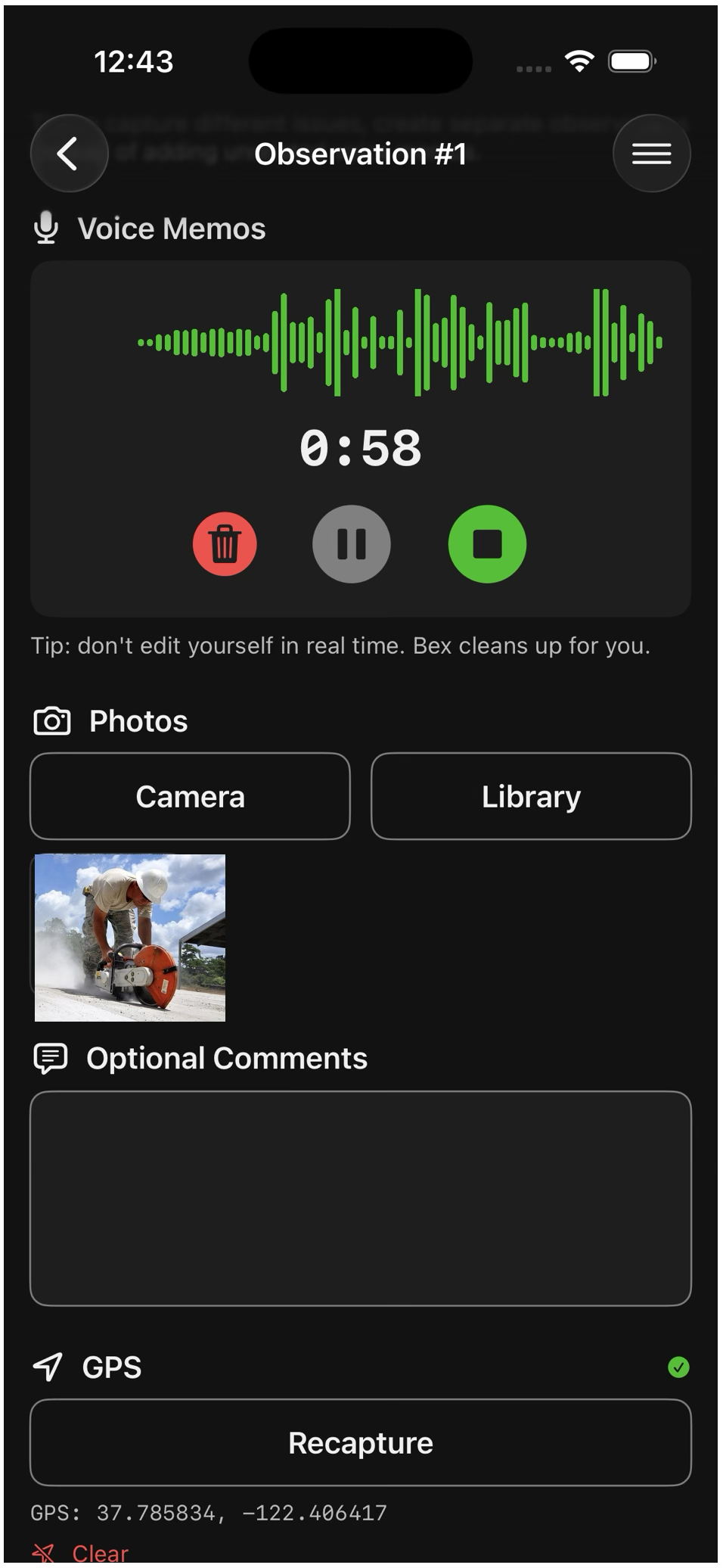
- Start the walk by jotting an approximate project name. Bex fuzzy-matches it against your CMS and selects the actual project for the report.
- Dictate observations. Voice is the primary input—talk naturally while moving through the site, and don't try to edit yourself in real time. Bex transcribes the audio and summarizes it on the server, removing umms, ahhs, false starts, and other distractions. The result is a clean, professional observation in the report.
- Type comments instead, if you prefer. The text input works the same way: write freely and Bex will summarize and clean it up. There's no need to produce report-ready prose by hand.
- Snap photos using the device camera, or pick existing photos from the library.
- Annotate photos with arrows, boxes, and free-form lines, in multiple colors. Annotations are preserved in the final report.
- GPS coordinates are captured automatically with each observation.
- Offline mode holds everything until you reconnect, so a flaky cell signal won't drop a thing.
When you finish the walk (or anytime, for that matter), you tap a button to trigger report generation. Bex's AI then transcribes and summarizes the report. See Bex Walks: After The Walk below for what happens next.
Quality Walks
The default mode. Bex turns the dictated observations and photos into a clean draft report. Each observation includes the project, location, photo (with annotations preserved), and the summarized description. From there, the report can be sent to Procore or another CMS—pair this with Bex Punch to push observations into your system of record without further data entry.
Safety Walks
Everything quality walks do, plus OSHA analysis. Every photo is examined by Bex's AI for safety violations, including ones the safety engineer might not have noticed. Each violation is classified by OSHA part and subpart, with reasoning. Custom rule sets are supported, so Bex can also flag conditions specific to your project or company on top of the standard OSHA references.
Proof-Of-Work
For subcontractors documenting completed work, and for owners documenting conditions for warranty purposes. The site walker takes photos and describes what's being captured; Bex's AI then indexes the items in each photo against your configured catalog. A Division 10 subcontractor's index, for instance, ignores Division 06 framing—only the items that matter to your business are tracked.
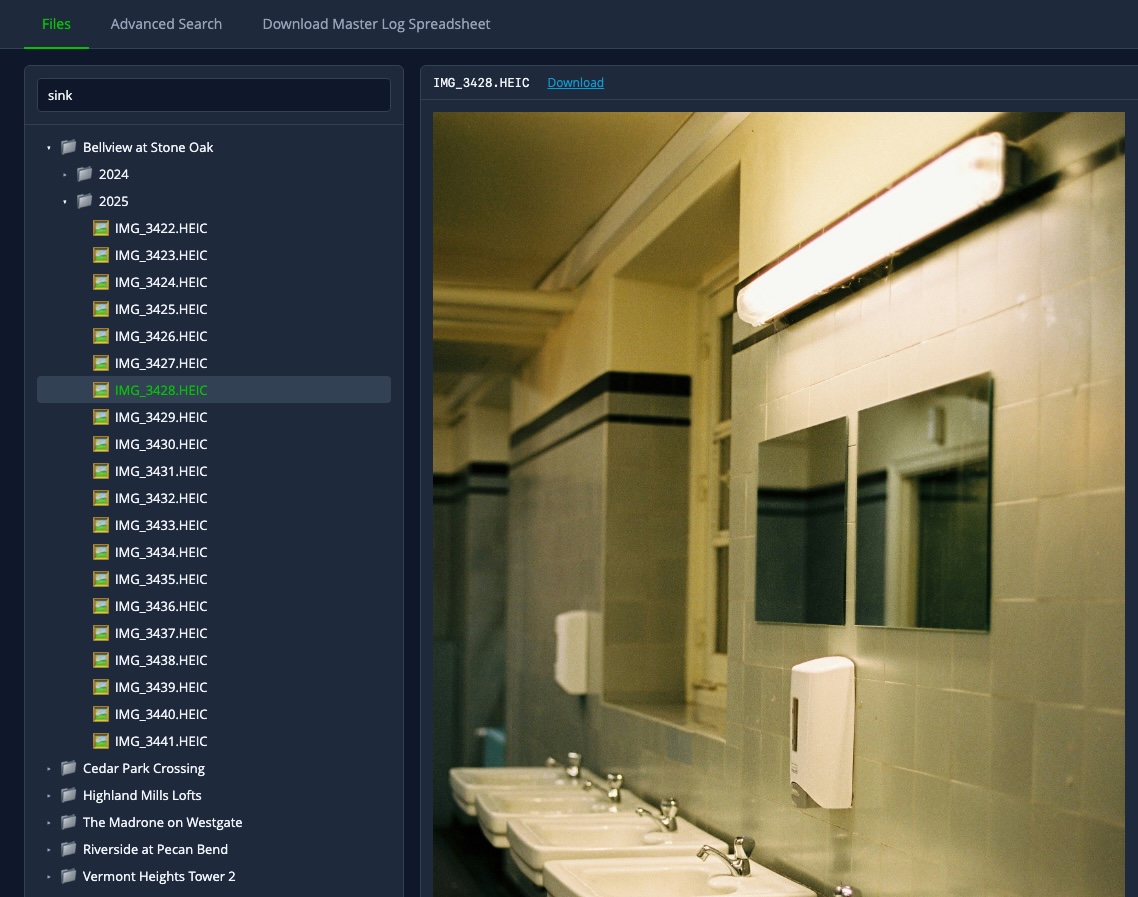
The result is a searchable, filterable inventory: pull up every signage photo from "Bellview" without scrolling through hundreds of camera-roll thumbnails. The index can be a spreadsheet stored alongside photos in SharePoint, or you can use Bex's built-in file organizer.
What Liens does
Bex Liens is end-to-end automation for lien notices and related documents. You forward each scanned PDF to Bex; it extracts roughly 22 fields per document, classifies the document type, fuzzy-matches the project against your project list, and writes everything to a master log. The original PDF is renamed for cleaner filing and saved to SharePoint or Bex's built-in file viewer.
Document inputs
A scanned PDF emailed to Bex. Layouts vary widely; Bex handles all the common ones, including:
- Structured forms such as a Texas Notice of Claim, with labeled fields.
- Plain business letters where the same facts are buried in prose on company letterhead.
- Notarized and recorded documents with county clerk stamps and filing markings.
Sideways scans are detected and rotated automatically.
Extraction and verification
After processing, Bex emails a clean transcription back to the sender. The sender reviews and either confirms or replies in plain language to correct any field. Once verified, the entry is committed to the master log alongside the renamed PDF.
Document classification and routing
A preliminary notice, a recorded affidavit, and a release are different legal instruments with different obligations. Bex distinguishes them—including by the presence and date of a notary's stamp—and routes each record according to your business rules. Routing rules can use any field on the notice: category, dollar amount, date, project, jurisdiction, claimant, or contractor. Filed liens can trigger an urgent escalation path; releases close out the matching record automatically.
Notifications and updates
Financial coordinators and project accountants receive periodic alerts on the cadence that fits your team—daily, weekly, or per-project. Each alert summarizes what's coming due and links back to the original PDFs.
To update any record, reply in plain language: "this notice has been paid", or "change the project on Acme #12 to Bellview". Bex applies the change to the master log and acknowledges by email.
Where the data lives
Bex Liens can act as your system of record, integrate with Procore or another CMS, or write to SharePoint. The options aren't exclusive—many customers use more than one, and the master log itself is a clean Excel spreadsheet organized into tabs.
Ad hoc reports
Beta feature. You can ask Bex Liens any question by email—for example, "executive summary in Word of the 5 biggest notices from the last 30 days"—and receive a tailored response. Recurring queries can be scheduled and emailed automatically on a cadence you set.
What Risk does
Bex Risk runs your bid-qualification process from initial pursuit to final go/no-go decision. It coordinates scorecards across roles, follows up when reviewers go quiet, and produces a clean decision package at each gate. The number of gates, the participants, and the scoring rules are all configurable.
Initiating a pursuit
Send one email to Bex with the basics: "AcmeCo wants us to bid on the Oakdale renovation, ~$12M, RFP due 11/14, BD Lead is Sara Lee." Bex creates the tracking record, builds the workbook, and sends the first gate's scorecard to the assigned roles.
Gates and scorecards
Each gate sends a scorecard to one or more reviewer roles. Scoring is deterministic: weighted point values per criterion, summed and compared against thresholds you've configured. After a gate completes, the decision-maker advances the pursuit, requests rationale, or stops it.
A common pattern is a single-role Gate 1 (the BD Lead's solo scorecard), followed by a parallel multi-role Gate 2 (Risk, BD, Operations, Preconstruction). Other gate counts and reviewer combinations are supported.
What reviewers see
Reviewers receive an Excel scorecard in their inbox, with cells locked to exactly the ones they need to edit. They fill it in and reply. There is no new tool to learn and no portal to log into.
Reminders, timeouts, and out-of-office
If a reviewer goes quiet, Bex sends reminders. If a deadline passes, the configured escalation kicks in. Out-of-office replies are detected, and the pursuit can be auto-routed to a designated alternate so it doesn't stall.
Decision packages
After each gate, the decision-maker receives one email with the score breakdown and the underlying rationale. To advance, reply with "let's go" or any equivalent phrase; to stop, reply "pass". Bex updates the record and takes the next step.
The final output is a master workbook with all scoring, narrative, and history captured for the audit trail.
Live dashboard
The Project Risk Dashboard shows every active and recent pursuit at a glance: current gate, who Bex is waiting on, score snapshots, and next timeout. Use it to observe progress in real time without waiting for the next gate email.
Configuring the workflow
Gates, roles, scoring rules, weights, thresholds, reminder cadence, and timeout behavior are all configurable per customer. To add a new gate or change a weight, email your CSM.
What Insurance does
Bex Insurance compares each subcontractor's certificates of insurance, endorsements, and policy documents against your specific compliance requirements. When something is missing or below standard, Bex emails the subcontractor directly and conducts the back-and-forth until they reach full compliance. Your team handles only the cases that need human judgment.
Submission
A subcontractor (or your team forwarding on their behalf) emails the relevant documents to Bex. Multi-document packets—a COI, policies, and endorsements together—are processed as one submission. Each document is hashed and stored before processing.
Assessment
Bex produces a Markdown assessment listing exactly which of your requirements are satisfied, which are not, and which are ambiguous. The assessment is written in your wording, minimum limits, and endorsement language; there are no generic templates to map your requirements onto.
Conversations with the sub
If something is missing or unclear, Bex composes a follow-up email to the subcontractor in natural language: "Your CGL shows $1M / $2M, but the project requires $2M / $4M with our entity named additional insured on a primary and noncontributory basis. Please provide an updated COI or a confirming endorsement." It reads like a note from a competent member of your team, not a templated form letter. Bex continues the conversation through revisions until the sub is compliant.
Escalation
When Bex isn't sure—unusual policy structures, conflicting endorsements, incomprehensible replies from the sub—it escalates to your team with the relevant documents and its own analysis attached. Routine cycles run without your team touching them; the cases that reach you are the ones that actually need human judgment.
Configuring compliance rules
Compliance rules are customer-specific and configured in plain English: required minimums, named-insured requirements, primary-and-noncontributory wording, waiver of subrogation, endorsement language, and any other criteria you require. To change rules, email your CSM.